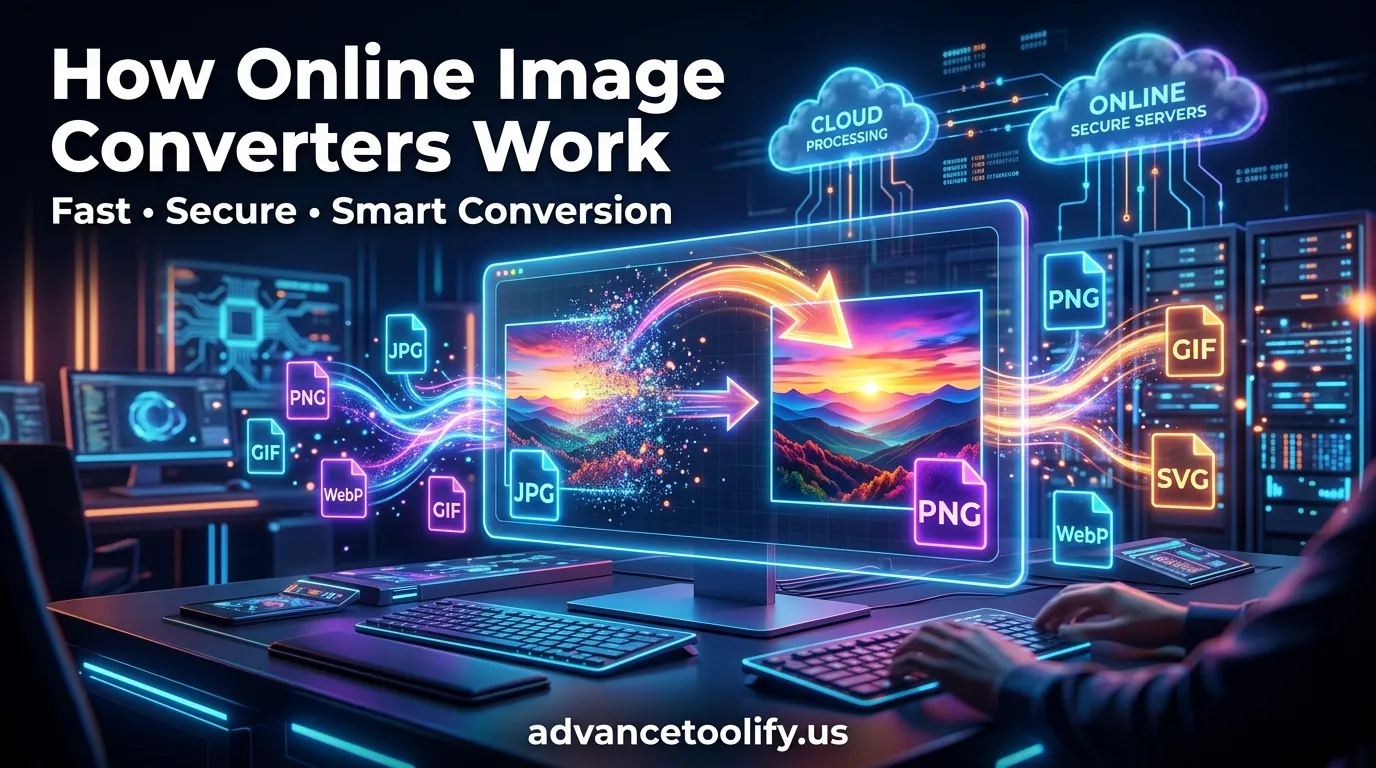
Introduction to How Online Image Converters Work
In today’s digital world, images are everywhere. From social media posts to website banners and online portfolios, images play a big role in communication. But here’s the catch — not all image formats work everywhere. That’s where understanding How Online Image Converters Work becomes important.
Online image converters are tools that transform images from one file format to another. Whether you need to convert a PNG to JPG or resize a WebP file for compatibility, these tools make it quick and simple. But have you ever wondered what actually happens behind the scenes?
In this guide, we’ll break everything down in simple terms. You’ll learn how these tools process data, compress files, protect your privacy, and deliver optimized images in seconds.
Let’s dive in.
What Is an Online Image Converter?
An online image converter is a web-based tool that changes an image from one format into another without needing software installation. These tools work through a browser and use remote servers to process files.
Common Image File Formats Explained
Here are the most common formats you’ll see:
- JPEG (JPG) – Great for photos, smaller file size.
- PNG – Supports transparency, high quality.
- GIF – Supports animation.
- WebP – Modern format with high compression efficiency.
- BMP – Uncompressed and large file size.
- TIFF – High-quality professional format.
Each format serves a purpose. For example, JPEG works well for web images because it reduces file size. PNG is ideal when you need transparency.
Why File Formats Matter
Different platforms support different formats. A website may require WebP for speed. A printing company may request TIFF. So, converting formats ensures compatibility and performance.
The Core Technology Behind How Online Image Converters Work
Now we get to the heart of it. Understanding the technology behind How Online Image Converters Work helps you use them more wisely.
Online image converters rely on:
- Web servers
- Image processing libraries
- Encoding algorithms
- Cloud infrastructure
File Upload and Data Encoding
When you upload an image, the file is transferred to a remote server. During this step:
- The image is converted into binary data.
- The server temporarily stores it.
- The system identifies its format and properties.
Most tools use secure HTTPS protocols to protect your data during transfer.
Server-Side Processing
After upload, the server processes the image using programming libraries like:
- ImageMagick
- GD Library
- OpenCV
These libraries decode the image into raw pixel data.
Image Decoding and Re-encoding
This is the magic moment.
The converter:
- Decodes the original file format.
- Extracts pixel data.
- Re-encodes the image into the new format.
- Applies compression settings.
Think of it like translating a book from English to Spanish. The message (image data) stays the same, but the format changes.
Image Compression Methods Used in Online Tools
Compression plays a huge role in How Online Image Converters Work efficiently.
Lossy Compression
Lossy compression removes some image data to reduce file size.
- Used in JPEG and WebP.
- Smaller file size.
- Slight quality reduction.
It’s perfect for websites because speed matters more than microscopic details.
Lossless Compression
Lossless compression keeps all original data intact.
- Used in PNG and TIFF.
- Larger file size.
- No quality loss.
This is ideal for design work and printing.
Comparing File Size vs Quality
| Compression Type | Quality | File Size | Best For |
| Lossy | Slightly Reduced | Small | Web, Social Media |
| Lossless | Original | Larger | Printing, Design |
Choosing the right compression depends on your goal.
Step-by-Step Process: How Online Image Converters Work
Let’s simplify everything into five easy steps.
Step 1: Upload
You select a file from your device and upload it via browser.
Step 2: Format Analysis
The system detects:
- File type
- Resolution
- Color depth
- Metadata
Step 3: Conversion Engine
The engine decodes the image and prepares it for conversion.
Step 4: Optimization
The tool applies:
- Compression settings
- Resolution adjustments
- Color profile adjustments
Step 5: Download
You receive the newly converted file, ready to use.
All of this happens in seconds. Pretty impressive, right?
Security and Privacy in Online Image Conversion
Security matters. When learning How Online Image Converters Work, you must consider data safety.
Data Encryption
Most trusted platforms use HTTPS encryption. This protects data during upload and download.
For secure browsing information, you can refer to:
https://www.cloudflare.com/learning/ssl/what-is-https/
Temporary Storage Policies
Many services:
- Delete files automatically after processing.
- Store files for only a few hours.
- Do not share files with third parties.
Always check a tool’s privacy policy before uploading sensitive images.
Advantages of Online Image Converters
Why are they so popular?
- No installation required
- Fast processing
- Free options available
- Cross-device compatibility
- User-friendly interface
They are especially helpful for bloggers, students, designers, and marketers.
Limitations and Potential Risks
However, nothing is perfect.
Some limitations include:
- File size upload limits
- Internet dependency
- Possible privacy risks
- Limited customization
For professional batch processing, desktop tools might be better.
How Online Image Converters Work on Mobile Devices
Mobile devices follow the same process, but with added optimization:
- Compressed uploads to save data
- Touch-friendly interfaces
- Cloud processing
Because smartphones have limited processing power, cloud-based systems handle most of the heavy lifting.
Cloud-Based vs Desktop Image Converters
| Feature | Online Tools | Desktop Software |
| Installation | Not Required | Required |
| Speed | Fast (Internet Dependent) | Fast (Local Processing) |
| Privacy | Depends on Provider | More Control |
| Batch Conversion | Limited | Advanced |
If you value convenience, online tools win. If you need full control, desktop tools are stronger.
Best Practices for Using Online Image Converters
To get the best results:
- Choose reputable websites.
- Avoid uploading confidential files.
- Select the correct format for your purpose.
- Check compression settings.
- Verify image quality after download.
A little caution goes a long way.
Frequently Asked Questions (FAQs)
1. Are online image converters safe to use?
Most reputable ones are safe and use encryption. Always check their privacy policy.
2. Do online converters reduce image quality?
It depends on the compression method. Lossy compression reduces quality slightly, while lossless keeps it intact.
3. Can I convert multiple images at once?
Some tools allow batch conversion, but free versions may limit file numbers.
4. Why is my converted image smaller in size?
The converter likely applied compression, especially if converting to JPEG or WebP.
5. Do online image converters remove metadata?
Many tools remove metadata automatically, which can improve privacy and reduce file size.
6. Is WebP better than JPEG?
WebP often provides better compression with similar quality, making it ideal for modern websites.